Plan your recipe and follow your batch
AI suggests ingredients and brewing steps. Brewing calculators use them to estimate bitterness, alcohol, color and water requirements. Review and adjust this plan in the recipe editor. During brewing, record actual readings in the batch journal, from mashing to tasting. Compare your plan with the results to improve your next batch.
Recipe planning
Calculate IBU, ABV, color and water from ingredients and equipment assumptions.
AI & recipe editor
Develop a beer idea, edit ingredients and review proposed changes.
Batch journal
Record actual phases, readings and tastings for your own batch.
Your path from recipe to finished beer
Set up your brewing equipment
Open “Brewing setup” to configure your equipment, batch size and fermentation conditions. The guided setup walks you through the essentials, or you can go straight to a recipe. Existing settings are reused, so the setup step does not appear for every new recipe.
- Choose your experience level and equipment type.
- Check your equipment profile, efficiency, losses and available fermentation temperature.
- Add your water profile and pressure fermentation settings if you use them.
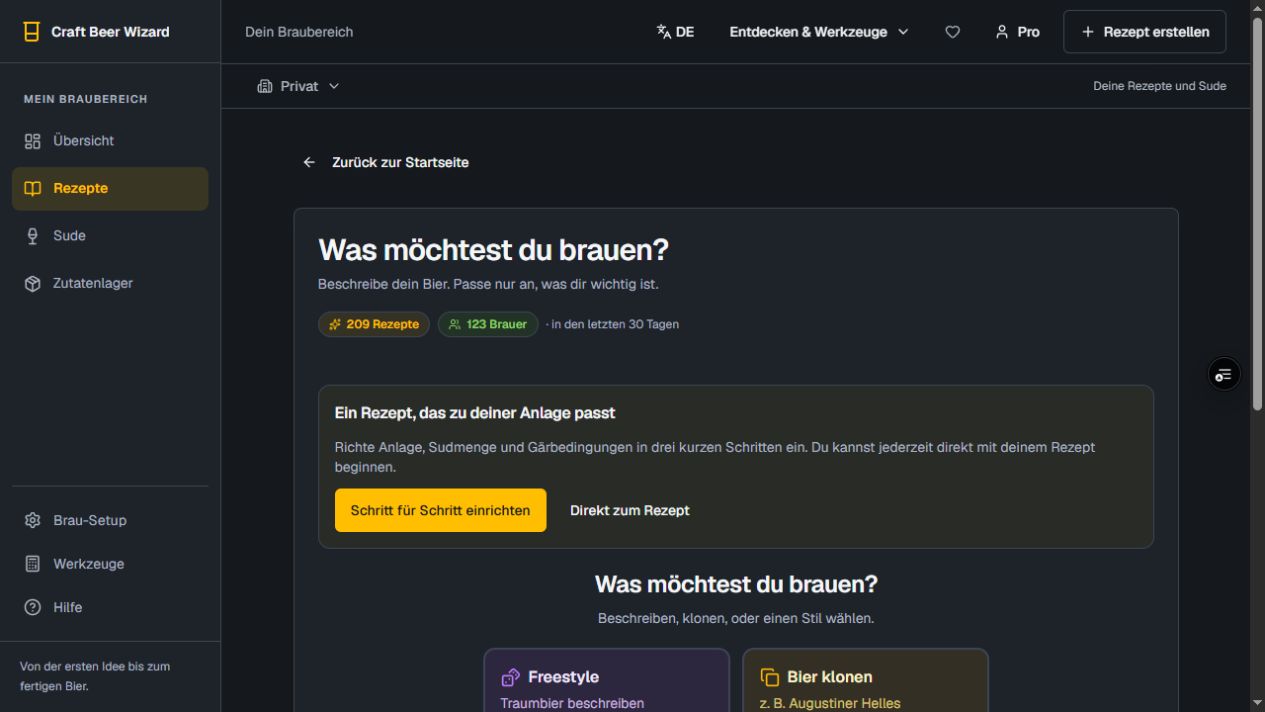
Choose Freestyle, Clone a beer or a style
Open the recipe generator and choose your starting point: describe your ideal beer in Freestyle, name a beer to clone, or search the 73 BJCP styles. The inventory option prioritizes ingredients you have and adds others where needed.
- Describe flavor, aroma and special ingredients clearly.
- Review your batch size and target values and adjust them as needed.
- You can also build a recipe manually or import a recipe file.
Generate and review the recipe plan
Generate a recipe from your choices. Review the grain bill, hops, yeast, mash schedule, fermentation plan and water requirements. The displayed numbers are calculated planning values. Check that ingredients, amounts and temperatures work with your equipment and brewing conditions.
- Review batch size, bitterness, alcohol, color and original gravity together.
- Check ingredient amounts, hop timings and water needs before brew day.
- Guests can generate recipes; sign in to save them permanently and manage your own batches.
Edit the recipe or ask AI for an adjustment
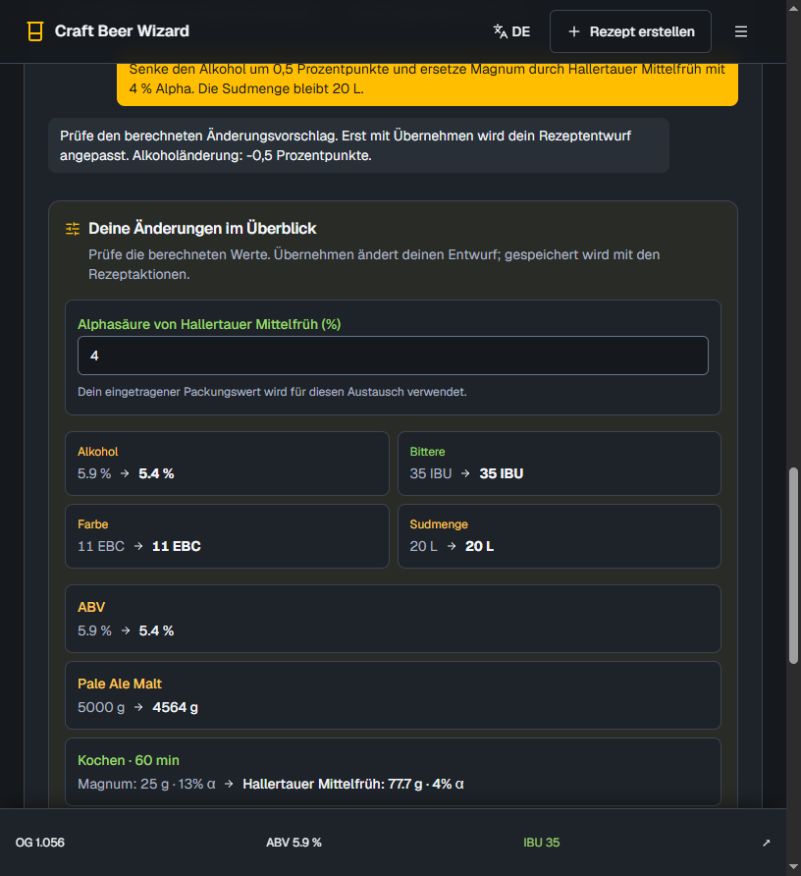
Open “Edit” to change ingredients, amounts and timings directly. Planning values recalculate as you edit. With access to “Adjust”, you can also describe a change. Review the calculated proposal and its before/after values, then select “Apply changes”.
- Edit malt, hops, yeast and extras directly.
- Check the actual alpha acid percentage when substituting hops.
- Applying changes updates the draft; save the recipe afterwards. “Undo” restores the previous editor state.
Save the recipe and start a batch
Start a batch from your saved recipe. If one is already active, continue that brew session or deliberately start another. Starting a batch preserves its recipe and available equipment profile. Later recipe edits do not rewrite the plan for a batch already in progress.
- Follow preparation, mashing and boiling with checklists, targets and timers.
- Viewing a later phase does not start it. Confirm an actual phase change explicitly.
- Find active and completed batches under “Batches”.
Record readings and actual brewing phases
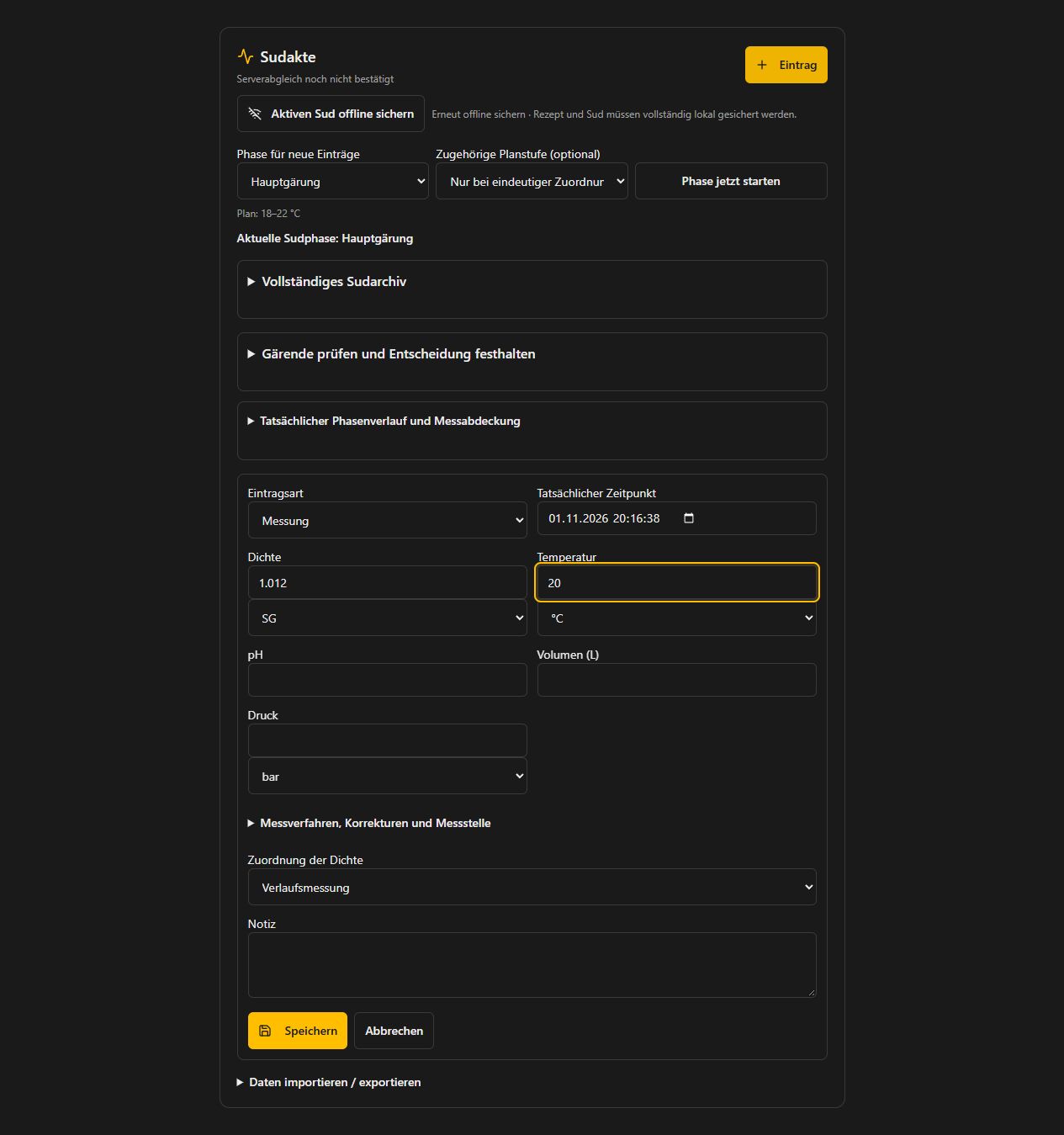
In your brew session, open “Batch journal” and select “Add entry”. Assign readings to preparation, mashing, lautering, boiling, cooling or fermentation. Record the actual time and only the values you measured. Corrections retain a traceable history.
- Record gravity, temperature, pH, volume, pressure and notes independently; leave missing readings blank.
- Choose units, method and instrument explicitly. For volume, record the measurement point and temperature basis.
- Compare the plan with readings over time, including rest, cold crash, carbonation and conditioning.
Review fermentation, package and taste
Follow fermentation with comparable readings. The stability assessment supports your decision; you confirm what happens next. Record actual packaging and multiple tastings afterwards to see how your beer develops during conditioning.
- An expired timer or estimated conditioning date does not automatically complete a batch.
- Record tasters with aliases and ratings and compare tastings by time since packaging.
- Compare batches and recipe versions to improve your next recipe.
Get more from your batch journal
Prepare for offline brewing
Open the active batch while online and select “Prepare active batch offline”. Check confirmed offline readiness before disconnecting. With your account still signed in locally, you can keep recording and reload the saved batch. Local storage and “Synced” are different states; check server confirmation after reconnecting.
Give readings the right context
Choose SG or °P, °C or °F, and bar or psi explicitly. For refractometer readings after fermentation starts, review and confirm the offered alcohol correction; the raw reading is preserved. Sensor and manual readings have an identified source. Fermentation decisions remain an explicit action.
Improve water balance and equipment settings
Record actual volumes, measurement points, additions and removals. Comparable readings and actual boil duration help assess losses. Explicitly accept any suggested equipment value into your profile. The preserved plan for your current batch stays intact.
Import, export and compare data
Under “Import / export data”, import CSV or JSON with a preview, unit selection and column mapping, or export your journal. Compare your batches and connect supported devices or a public Tilt Sheet if needed. A Tilt Sheet link must be publicly readable.
Create a complete batch archive
The ZIP archive bundles the recipe snapshot, journal, correction history and photos. Export and restoration can be resumed. Restoration creates a separate historical batch and preserves the original. Protected partner recipe contents are excluded. Follow the job through to successful completion.